
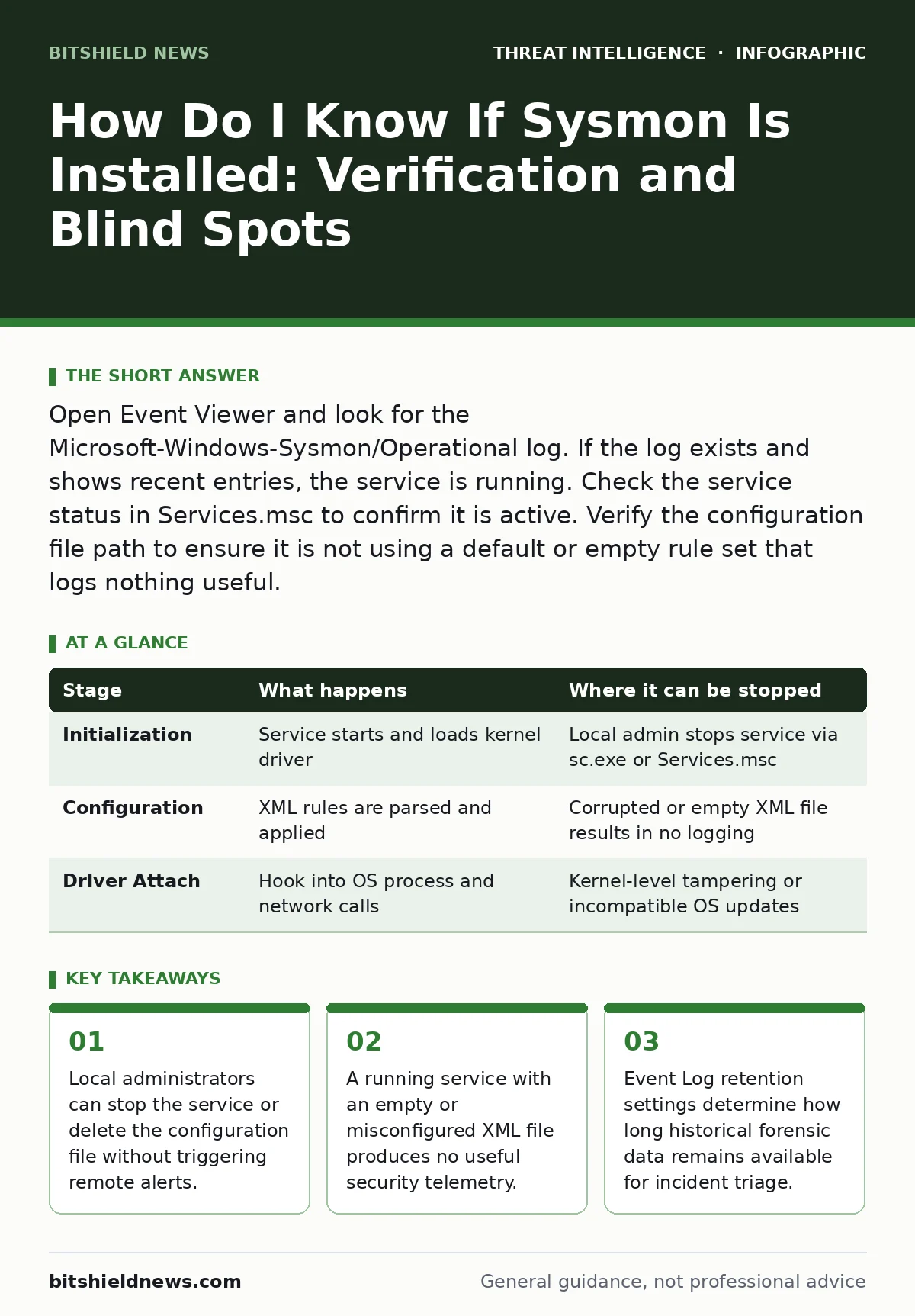
Open Event Viewer and look for the Microsoft-Windows-Sysmon/Operational log. If the log exists and shows recent entries, the service is running. Check the service status in Services.msc to confirm it is active. Verify the configuration file path to ensure it is not using a default or empty rule set that logs nothing useful.
How Do I Know If Sysmon Is Installed
You want to verify the presence of System Monitor, known as Sysmon, on a Windows endpoint. The most direct method is checking the Event Viewer for the specific log channel created by the driver. Open Event Viewer, navigate to Applications and Services Logs, and look for Microsoft-Windows-Sysmon. If this folder exists and contains an Operational log, the software is installed. You must check the "Status" column of that log. If it says "The log file is full" or "Disabled," the monitoring is ineffective. This check confirms installation but does not prove the tool is configured to catch threats.
Stage 1: Service Initialization and Driver Loading
Stage 1: Service Initialization and Driver Loading
The Sysmon service starts when the system boots or when an administrator manually triggers it. The service loads a kernel-mode driver that attaches to the operating system’s process creation and network connection events. This driver operates at a lower level than standard user-space applications. It intercepts system calls before they complete. This allows it to record details about parent-child process relationships. The service reads its configuration file, typically an XML document, to determine which events to log. If the configuration file is missing, the service may start but log only default, limited events.
| Stage | What happens | Where it can be stopped |
|---|---|---|
| Initialization | Service starts and loads kernel driver | Local admin stops service via sc.exe or Services.msc |
| Configuration | XML rules are parsed and applied | Corrupted or empty XML file results in no logging |
| Driver Attach | Hook into OS process and network calls | Kernel-level tampering or incompatible OS updates |
Stage 2: Event Collection and Filtering
Stage 2: Event Collection and Filtering
Once the driver is active, it monitors process creation, process termination, and network connections. It does not record every action by default. The configuration file defines filters. For example, you might exclude events from specific trusted executables to reduce noise. The driver checks each event against these rules. If an event matches an include rule, it is formatted into a structured XML record. If it matches an exclude rule, it is discarded immediately. This filtering happens in memory. The discarded data is never written to disk. This means you cannot recover excluded events later, even with forensic tools.
Stage 3: Log Writing and Retention
Stage 3: Log Writing and Retention
The filtered events are written to the Windows Event Log subsystem. Sysmon uses a dedicated log channel, which separates its data from standard system or security logs. This separation helps during incident triage by reducing the volume of irrelevant data. The Event Log service manages storage. When the log reaches its maximum size, it either overwrites the oldest entries or stops recording new ones, depending on the configuration. You must ensure the log size is large enough to hold several days of data. If the log fills and overwrites, evidence of early-stage attacks disappears. This loss is permanent unless you have a separate log collection system.
Stage 4: Configuration Verification and Integrity
Stage 4: Configuration Verification and Integrity
A running service does not guarantee effective monitoring. You must verify the configuration file is intact and recent. The Sysmon service stores the path to its configuration file in the registry. Check this path to see where the rules are stored. Compare the file hash against a known good baseline. If the file has changed, an attacker may have modified the rules to hide their activity. They might add exclusions for their tools or disable specific event IDs. You should also check the file permissions. If the Users group has write access to the configuration file, any local user can modify the monitoring rules.
See also: National Cyber Emergency Declarations: What They Mean for Your Infrastructure · What Is DNS Tunneling: How Attackers Hide in Plain Sight
Stage 5: Remote Verification and Telemetry Gaps
Stage 5: Remote Verification and Telemetry Gaps
You often need to verify Sysmon status across many machines. Using Group Policy Objects or configuration management tools allows you to push checks remotely. However, remote verification has limits. You can check if the service is running, but you cannot easily verify the content of the configuration file without pulling it down. This creates a gap in your security telemetry. An attacker could stop the service on a single machine, and your remote check would only show the service is stopped if you query the service status directly. If you only check for the existence of the log, you might miss that the service was stopped and restarted with a bad config.
Stage 6: Evasion Techniques and Local Privilege
Stage 6: Evasion Techniques and Local Privilege
Attackers with local administrator rights can bypass Sysmon. They can stop the service, delete the configuration file, or modify the Event Log settings. Some advanced threats use kernel-level exploits to unload the Sysmon driver. This removes the monitoring hook entirely. The service may appear to be running, but no data is being collected. This is a critical failure mode. You cannot detect this evasion using only local checks. You need external validation, such as checking for expected network connections that Sysmon should have logged. If you see network traffic that should have generated a log entry, but no entry exists, the monitoring is broken.
Common Failure Points and Remediation
Sysmon fails when the configuration is too broad or too narrow. Too broad creates performance issues and storage exhaustion. Too narrow misses critical events. You must balance detail with usability. Regularly review the configuration to ensure it aligns with your threat model. Consider the risk of DNS tunneling or DCSync attacks that rely on specific network or process behaviors. If Sysmon is not configured to log these specific indicators, you will miss them. Integrate Sysmon logs with your network detection and response platform for better context. This correlation helps identify when local monitoring has been compromised.
Related Monitoring Strategies
Sysmon is only one part of a defense strategy. It focuses on local host activity. You must combine it with network enumeration to see what is happening outside the host. Understanding the difference between local process execution and remote network requests is key. For instance, an attacker might use legitimate tools to perform lateral movement. Sysmon logs the process creation, but network logs show the destination. Combining these views reduces false negatives. Do not rely on Sysmon alone for visibility into hacktivism or other threat groups that use standard administrative tools.
Key takeaways
- Local administrators can stop the service or delete the configuration file without triggering remote alerts.
- A running service with an empty or misconfigured XML file produces no useful security telemetry.
- Event Log retention settings determine how long historical forensic data remains available for incident triage.
Frequently asked questions
Can I install Sysmon without restarting the computer?
Yes, you can install the binary and start the service without a reboot. However, the kernel driver loads immediately, and some process-level hooks may not capture events that occurred during the installation window.
Does Sysmon log all file system changes?
No, Sysmon does not log all file changes by default. It logs file creation and modification only if you explicitly enable these event IDs in the configuration. Logging all file changes creates massive volume and impacts performance.
How do I prevent attackers from stopping Sysmon?
You cannot fully prevent a local administrator from stopping it. Use application control to restrict who can modify services or event logs. Monitor for service stop events and alert immediately when Sysmon stops unexpectedly.
Is Sysmon data encrypted on disk?
No, the Event Log files are not encrypted by default. Anyone with local admin access can read the raw log files. Use BitLocker or other full-disk encryption to protect the log files from offline access.
How this guide was produced: written by the BitShield News editorial team with AI assistance, checked against the public references listed below, and reviewed when the facts change. See our editorial policy or report an error.