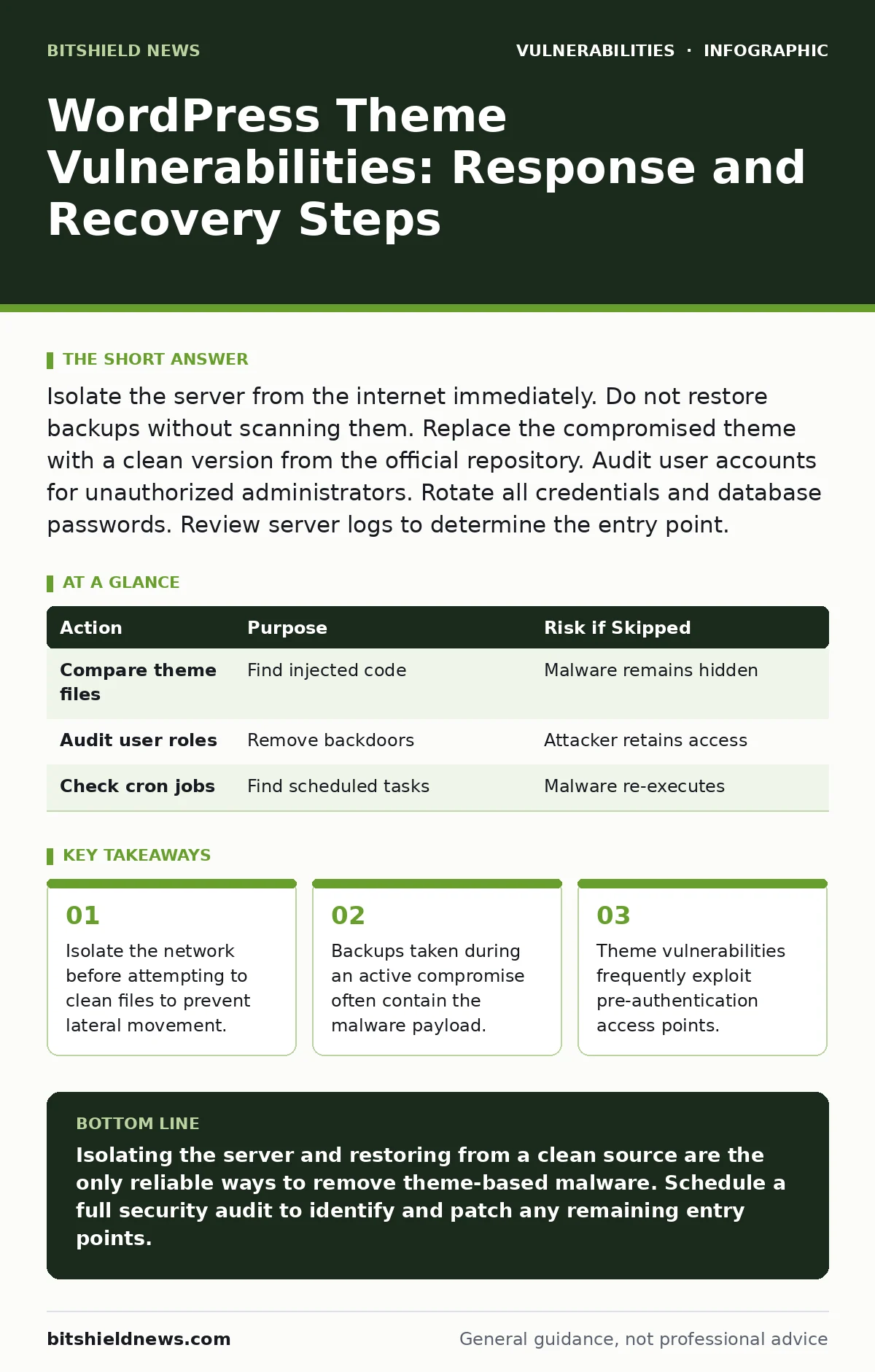
Isolate the server from the internet immediately. Do not restore backups without scanning them. Replace the compromised theme with a clean version from the official repository. Audit user accounts for unauthorized administrators. Rotate all credentials and database passwords. Review server logs to determine the entry point.
First hour
The immediate priority is stopping the data exfiltration and preventing the attacker from maintaining access. You must sever the connection between the compromised server and the public internet. This action stops the attacker from uploading additional tools or downloading stolen data. It does not remove the malware, but it freezes the situation.
- Disconnect the server from the public network.
- Preserve current logs and file hashes for forensics.
- Change all administrative passwords for the server and database.
- Disable the compromised theme in the WordPress dashboard.
Imagine a scenario where an attacker uploads a web shell through a theme vulnerability. If you do not isolate the server, they can use that shell to install cryptocurrency miners or steal customer data. The clock is ticking. Every minute the server remains connected, the attacker can deepen their foothold.
You must assume that all credentials are compromised. This includes the WordPress administrator password, the database user password, and the server root password. Change these immediately. Do not reuse old passwords. Use a password manager to generate unique, complex strings for each account. This step prevents the attacker from logging back in if they retain a session cookie.
First day
Once the server is isolated, you begin the containment phase. The goal is to identify the scope of the intrusion. You need to determine which files were modified and which user accounts were created by the attacker. This requires a methodical review of the file system and database.
Start by comparing the current theme files against the original package from the WordPress.org repository. Many attackers modify core theme files like functions.php or header.php to inject malicious JavaScript. These injections often execute pre-authentication vulnerabilities, allowing access without valid credentials. You must remove these hidden scripts.
Check the WordPress user table in the database. Look for any users with the administrator role that you do not recognize. Attackers often create hidden admin accounts to maintain persistent access. Delete any unauthorized accounts. Also, review the capabilities of legitimate users. Ensure no standard editors have been granted administrator privileges.
| Action | Purpose | Risk if Skipped |
|---|---|---|
| Compare theme files | Find injected code | Malware remains hidden |
| Audit user roles | Remove backdoors | Attacker retains access |
| Check cron jobs | Find scheduled tasks | Malware re-executes |
You should also review the server’s cron jobs. Attackers often add scheduled tasks to ensure their malware runs periodically. These tasks might download new payloads or send stolen data to external servers. Remove any cron entries you did not create. This step is critical for stopping automated malicious behavior.
First week
Recovery involves rebuilding the environment with clean components. You cannot simply clean the infected files. The integrity of the system is compromised. You must install a fresh copy of WordPress and the theme. This ensures that no hidden backdoors remain in the codebase.
Install the theme directly from the official WordPress repository. Do not use a theme downloaded from a third-party site. Third-party themes often contain malicious code from the start. This is a common source of initial infection. Using official sources reduces the risk of introducing new vulnerabilities.
You must also rotate all API keys and secret tokens. If your site uses email services, payment gateways, or analytics platforms, generate new keys for each. The attacker may have exfiltrated these secrets. Using old keys allows them to continue accessing your external services.
Consider implementing a web application firewall to filter malicious traffic. This tool sits between your server and the internet. It blocks requests that match known attack patterns. While it does not fix the underlying vulnerability, it provides an additional layer of defense. It can stop automated scans and common exploitation attempts.
Who to tell
Transparency is required for legal and ethical reasons. You must notify your hosting provider. They can help monitor the server for unusual traffic patterns. They may also provide logs that you do not have access to. This collaboration speeds up the investigation.
If customer data was exposed, you must inform affected users. This is often a legal requirement. Provide clear information about what happened and what steps they should take. Advise them to change their passwords and monitor their financial statements. This builds trust and reduces liability.
You should also report the vulnerability to the theme author. This helps the broader community. The author can patch the vulnerability and release an update. This prevents other sites from being compromised by the same flaw. Use the WordPress support forums or the author’s contact form for this communication.
How to stop a repeat
Preventing future incidents requires a shift in how you manage themes. You must stop using themes that are no longer supported. Abandoned themes do not receive security updates. They become easy targets for attackers. Only use themes that are actively maintained and updated regularly.
Implement a strict update policy. Test updates in a staging environment before applying them to the live site. This ensures that updates do not break functionality. It also allows you to verify that the update resolves the vulnerability. Automated updates can be risky if not monitored.
You should also limit file permissions on the server. The web server user should only have read and execute permissions for theme files. It should not have write permissions. This prevents attackers from modifying theme files even if they exploit a vulnerability. This configuration reduces the impact of successful attacks.
Regularly scan your site for malware. Use a security plugin that checks for known malicious signatures. Scan for modified core files and unauthorized plugins. This helps you detect intrusions early. Early detection limits the damage and reduces recovery time.
See also: Authorization Bypass Response: Containment and Recovery Steps · AI Security Operations Checklist for Incident Response Teams
Long-term strategy
Security is not a one-time task. It is an ongoing process. You must continuously monitor your site for signs of compromise. This includes reviewing logs, monitoring traffic, and checking for unusual behavior. Automation can help with this monitoring. Set up alerts for critical events.
You should also educate your team about security best practices. Ensure that everyone understands the risks of using untrusted themes. Train them to recognize phishing attempts and social engineering. Human error is often the weakest link in security. A well-informed team is your best defense.
Consider using VEX documents to track vulnerability exposure. These documents list known vulnerabilities in your software components. They help you prioritize patches based on risk. This approach ensures that you address the most critical issues first. It improves your overall security posture.
Final checks
Before declaring the site secure, perform a final audit. Verify that all malicious files have been removed. Confirm that all user accounts are legitimate. Ensure that all credentials have been rotated. Check that the theme is the latest official version.
Test the site functionality thoroughly. Ensure that all features work as expected. Verify that the security headers are correct. Confirm that the web application firewall is active. This final step ensures that the site is stable and secure.
Key takeaways
- Isolate the network before attempting to clean files to prevent lateral movement.
- Backups taken during an active compromise often contain the malware payload.
- Theme vulnerabilities frequently exploit pre-authentication access points.
Isolating the server and restoring from a clean source are the only reliable ways to remove theme-based malware. Schedule a full security audit to identify and patch any remaining entry points.
Frequently asked questions
How do I know if my theme has a vulnerability?
Check the theme’s update history and security advisories. If the theme is no longer updated or has known issues, replace it with a maintained alternative.
Can I just delete the malicious files?
Deleting files may remove visible malware, but hidden backdoors often remain. Reinstalling the theme from a clean source is safer and more thorough.
Do I need to change my domain registrar password?
Yes, if the attacker had access to your server, they may have exfiltrated other credentials. Rotate all passwords associated with your digital infrastructure.
Is a web application firewall enough?
No, a firewall blocks known attacks but does not fix underlying code vulnerabilities. You must patch the theme and follow secure development practices.
How this guide was produced: written by the BitShield News editorial team with AI assistance, checked against the public references listed below, and reviewed when the facts change. See our editorial policy or report an error.