
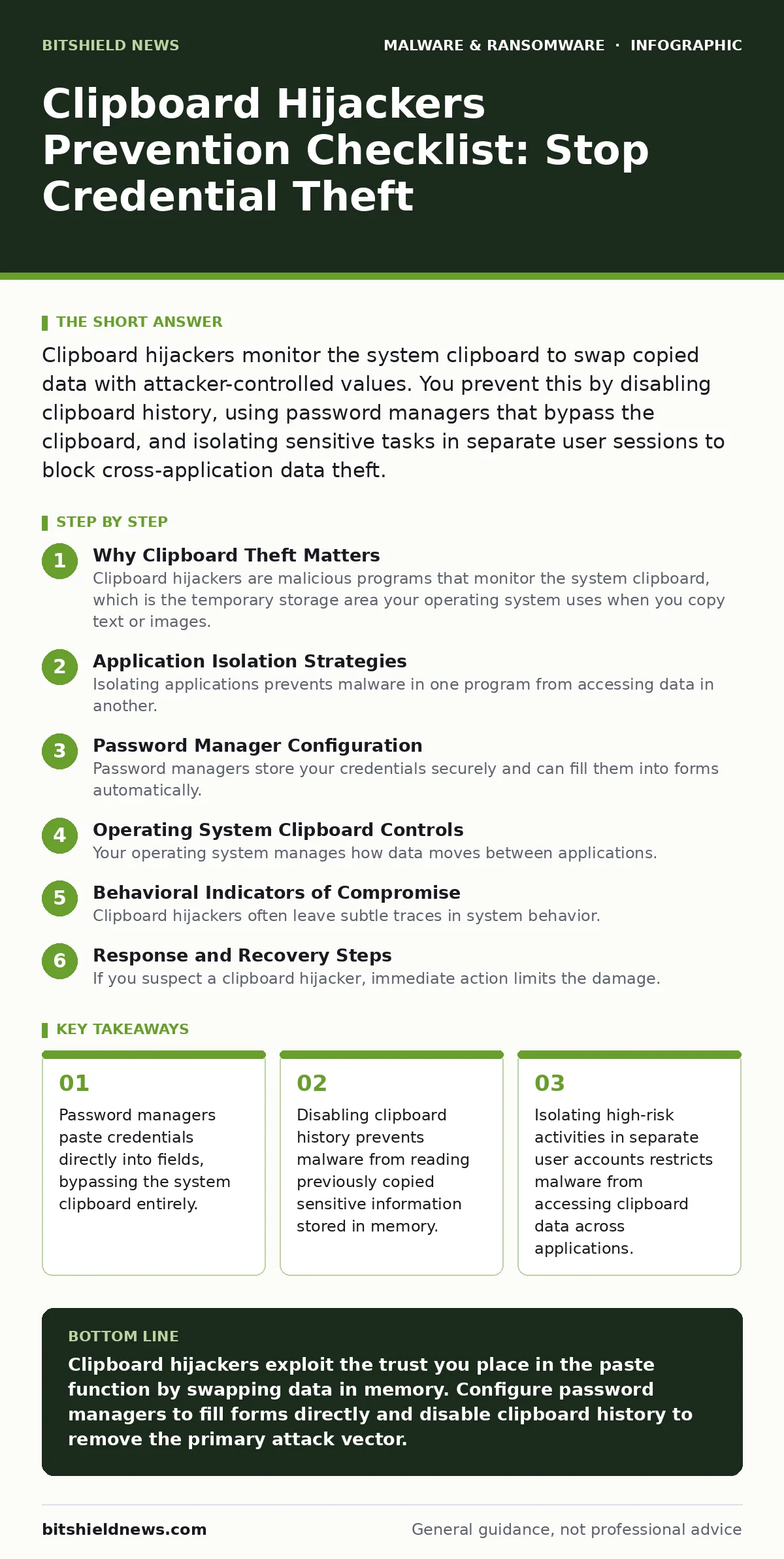
Clipboard hijackers monitor the system clipboard to swap copied data with attacker-controlled values. You prevent this by disabling clipboard history, using password managers that bypass the clipboard, and isolating sensitive tasks in separate user sessions to block cross-application data theft.
Why Clipboard Theft Matters
Clipboard hijackers are malicious programs that monitor the system clipboard, which is the temporary storage area your operating system uses when you copy text or images. These attackers do not need to steal your password directly from a login form. Instead, they wait until you copy your cryptocurrency wallet address or bank account number. When you paste that value into a transaction field, the malware swaps it with an address they control. You complete the transfer, and the funds go to the attacker. This method bypasses many traditional security controls because the action looks like a normal user operation.
Application Isolation Strategies
Isolating applications prevents malware in one program from accessing data in another. This is the most effective defense against clipboard hijackers.
- Use separate user accounts for browsing and administrative tasks: This creates a boundary that prevents a compromised browser from accessing clipboard data in your email or banking software.
- Run sensitive applications in sandboxed environments: Sandboxing restricts what an application can access on the system, blocking malware from injecting code into other processes to monitor clipboard activity.
- Disable clipboard integration between virtual machines: If you use virtual machines for testing, ensure the host and guest operating systems do not share clipboard data to prevent cross-environment theft.
Password Manager Configuration
Password managers store your credentials securely and can fill them into forms automatically. Configuring them correctly reduces reliance on the clipboard.
- Enable direct form filling for all supported sites: This allows the manager to inject data into web forms without copying it to the clipboard, eliminating the window where hijackers can intercept it.
- Disable automatic clipboard clearing timeouts: Some managers clear the clipboard after a set time, but this still exposes the data briefly. Direct filling is safer than relying on timeouts.
- Avoid copying passwords manually: Manual copying places the password in the clipboard memory, where any running malware can read it. Direct filling keeps the data within the secure application boundary.
Operating System Clipboard Controls
Your operating system manages how data moves between applications. Adjusting these settings limits what malware can access.
- Disable clipboard history features: Clipboard history stores previously copied items, giving malware a persistent source of sensitive data even if it does not catch the copy event in real time.
- Restrict clipboard access for third-party applications: Many operating systems allow you to control which apps can read or write to the clipboard. Deny access to applications that do not need it.
- Monitor for unknown processes accessing clipboard APIs: System logs can show which processes are interacting with the clipboard. Unfamiliar processes accessing these APIs may indicate a hijacker is active.
Behavioral Indicators of Compromise
Clipboard hijackers often leave subtle traces in system behavior. Recognizing these signs helps you detect an infection early.
- Check for unexpected changes in pasted data: If a copied address or number changes after pasting, a hijacker may have swapped it. Verify the value before confirming any transaction.
- Look for high CPU usage by background processes: Clipboard monitoring requires constant polling of the system. Unexplained CPU spikes may indicate a process is scanning the clipboard.
- Review installed extensions and background services: Malicious browser extensions can sometimes access clipboard data. Remove any extensions you do not recognize or need. See our guide on malicious browser extensions for more details on identifying suspicious add-ons.
See also: Real-Time Protection Myths: What Endpoint Security Actually Does · What Is Command and Control: How Malware Steers Your Systems
Response and Recovery Steps
If you suspect a clipboard hijacker, immediate action limits the damage.
- Disconnect from the network: This prevents the malware from sending stolen data to command and control servers. See our guide on command and control servers to understand how attackers receive stolen data.
- Change all passwords from a clean device: Use a device that was not infected to change passwords. This ensures the new credentials are not captured by the hijacker.
- Run a full system scan with updated security software: Standard antivirus tools may detect known clipboard hijackers. However, advanced persistent threats may require specialized malware analysis. See our guide on malware analysis for deeper investigation techniques.
Integration with Broader Security
Clipboard hijacking is often part of a larger attack chain. Understanding this context helps you prioritize defenses.
- Treat clipboard theft as a symptom of deeper compromise: Hijackers are often installed by ransomware-as-a-service groups or via web shells. See our guide on ransomware-as-a-service to understand how these tools are distributed.
- Monitor for keylogger activity: Clipboard hijackers are frequently paired with keyloggers. See our guide on keyloggers to learn how to detect and prevent keystroke recording.
- Ensure real-time protection is active: Real-time monitoring can detect suspicious clipboard access patterns. See our guide on real-time protection for best practices in configuring continuous monitoring.
Key takeaways
- Password managers paste credentials directly into fields, bypassing the system clipboard entirely.
- Disabling clipboard history prevents malware from reading previously copied sensitive information stored in memory.
- Isolating high-risk activities in separate user accounts restricts malware from accessing clipboard data across applications.
Clipboard hijackers exploit the trust you place in the paste function by swapping data in memory. Configure password managers to fill forms directly and disable clipboard history to remove the primary attack vector.
Frequently asked questions
Can antivirus software detect clipboard hijackers?
Standard antivirus tools may detect known variants, but advanced hijackers often evade detection by using legitimate system APIs. Behavioral monitoring is more effective than signature-based detection.
Does using a password manager guarantee safety from clipboard theft?
If configured to use direct form filling, yes. If the manager copies passwords to the clipboard, the data remains vulnerable to interception by malware running on the system.
How do I know if my clipboard is being monitored?
Look for unexpected changes in pasted data or high CPU usage by background processes. System logs showing unknown processes accessing clipboard APIs are a strong indicator of monitoring.
Is disabling clipboard history enough to prevent hijacking?
No. Disabling history prevents access to past data, but real-time hijackers intercept data as soon as you copy it. You need application isolation and direct form filling for complete protection.
How this guide was produced: written by the BitShield News editorial team with AI assistance, checked against the public references listed below, and reviewed when the facts change. See our editorial policy or report an error.