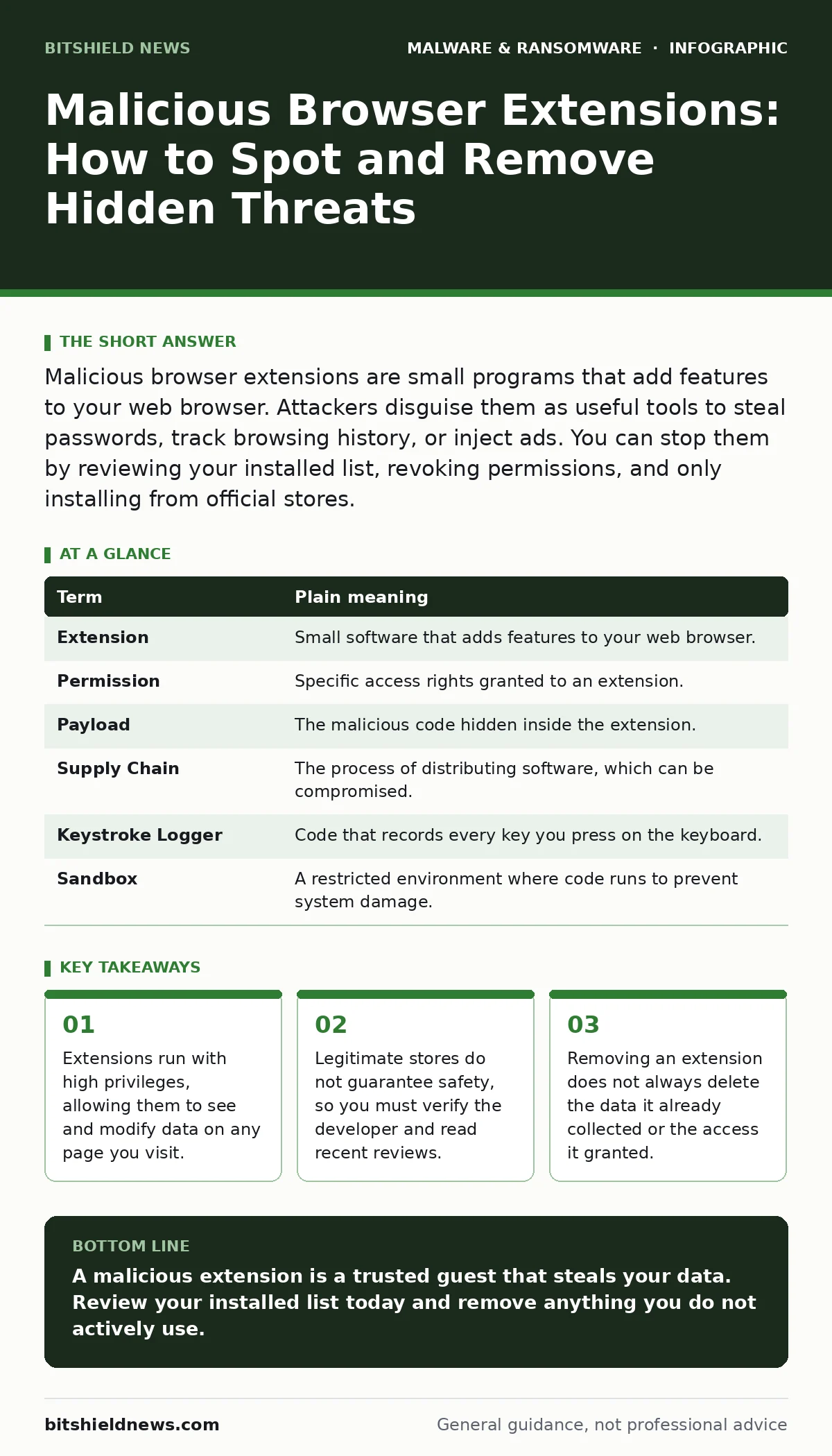
Malicious browser extensions are small programs that add features to your web browser. Attackers disguise them as useful tools to steal passwords, track browsing history, or inject ads. You can stop them by reviewing your installed list, revoking permissions, and only installing from official stores.
The Unlocked Drawer Analogy
Imagine your computer is a house. The operating system is the foundation and walls. The browser is a guest room where you keep your valuables. Most people lock the front door, which is your firewall. But a browser extension is like giving a stranger a key to that specific guest room.
This stranger can walk in while you are sleeping. They do not need to break down the door. They simply use the key you handed them. They can look through your drawers, copy notes, and even rearrange your furniture. You might not notice until your valuables are gone.
This analogy holds true because extensions operate within the browser environment. They have direct access to the content you view. This access is granted by you when you click "Add to Browser." Once granted, the extension can act on your behalf without further permission.
What Extensions Can Actually See
When you install an extension, you grant it permissions. These permissions define what the software can do. A password manager needs access to your login pages. A ad blocker needs to see web content to remove ads. A malicious extension asks for similar access but uses it for theft.
The most dangerous permission is access to "all websites." This allows the code to read every URL you visit. It can also capture keystrokes. This means every character you type into a search bar or login form is sent to the attacker.
Attackers often bundle malicious code inside legitimate-looking tools. A grammar checker might also log your browsing history. A currency converter might inject crypto-mining scripts. The visible function is harmless. The hidden function is the threat.
The Hidden Cost of Convenience
You trust the browser store because it feels official. This is a common mistake. Stores review submissions, but they cannot catch every piece of malicious code. Some extensions start clean and update later with malware. This is known as a supply chain attack.
Consider the trade-off of convenience versus control. You install a tool to save time. That tool now has the power to slow down your connection. It might inject ads into every page you view. This slows your browsing and drains your battery.
This hidden cost is often ignored. The extension is small. The impact is gradual. You attribute the slowness to your internet connection. The reality is that the extension is communicating with a remote server. This communication is the leak.
Signs Your Browser Is Compromised
You may not see a pop-up warning. The signs are subtle. Your default search engine changes without your input. New tabs open with strange content. You see ads on sites that do not normally have them.
Check your data usage. If your network traffic spikes while you are idle, an extension might be uploading data. Look for extensions you do not remember installing. Check the last update date. If it was updated recently by an unknown developer, be cautious.
These symptoms can also indicate other issues. A slow computer might have a failing hard drive. However, combined with unusual browser behavior, the extension is the likely culprit. Do not ignore these small anomalies. They are often the first sign of a larger breach.
Simple Safety Habits
You can reduce your risk with simple habits. Start by auditing your current extensions. Go to the extensions manager in your browser settings. Look at each one. Ask yourself if you still need it. If not, remove it.
Next, check the permissions. If a simple tool asks for access to all your data, deny it. Legitimate tools rarely need such broad access. If a developer cannot explain why they need it, do not install it.
Finally, keep your browser updated. Updates often patch security holes. They also improve the review process for new extensions. This reduces the chance of installing a rogue program.
| Term | Plain meaning |
|---|---|
| Extension | Small software that adds features to your web browser. |
| Permission | Specific access rights granted to an extension. |
| Payload | The malicious code hidden inside the extension. |
| Supply Chain | The process of distributing software, which can be compromised. |
| Keystroke Logger | Code that records every key you press on the keyboard. |
| Sandbox | A restricted environment where code runs to prevent system damage. |
See also: Tracker Blockers: Real Privacy Gains and Hidden Trade-Offs · Detect Ransomware-as-a-Service: Log Signals and Blind Spots
Immediate Steps to Take
If you suspect an extension is malicious, act quickly. Do not wait for a crash. Follow these steps to secure your browser.
- Open your browser settings and navigate to the extensions page.
- Locate the suspicious extension. Check its name and icon carefully.
- Click "Remove" or "Uninstall." Confirm the action when prompted.
After removal, change your passwords. The extension may have already captured them. This is especially true if the extension had access to your login pages.
You should also check for other signs of compromise. Look for new shortcuts on your desktop. Check your browser homepage settings. If they changed, reset them to default.
For a deeper understanding of how attackers hide their code, see our guide on static malware analysis. This process involves examining the code without running it, which helps identify threats before they execute.
Protecting Your Digital Life
Your browser is a window into your digital life. Keep that window clean. Do not install extensions from unknown sources. Stick to the official stores. Read reviews from other users. Look for recent complaints about privacy or performance.
Remember the unlocked drawer. You hold the keys. Do not hand them out freely. Every extension you install is a guest in your house. Treat them with suspicion. Verify their identity. Limit their access.
This approach reduces your exposure. It does not eliminate it. No system is perfect. But by being selective, you remove the easiest targets. You force attackers to work harder. They often move on to easier victims.
For more information on how attackers maintain access after an initial breach, read about backdoors. These are hidden entry points that allow remote control of your system. Understanding them helps you recognize the value of securing your browser.
Key takeaways
- Extensions run with high privileges, allowing them to see and modify data on any page you visit.
- Legitimate stores do not guarantee safety, so you must verify the developer and read recent reviews.
- Removing an extension does not always delete the data it already collected or the access it granted.
A malicious extension is a trusted guest that steals your data. Review your installed list today and remove anything you do not actively use.
Frequently asked questions
Can a browser extension infect my entire computer?
Most extensions are sandboxed, meaning they are restricted to the browser. However, some vulnerabilities allow them to escape this restriction and affect the operating system.
How do I know if an extension is legitimate?
Check the developer's website, look for a high number of users, and read recent reviews. Be wary of extensions with very few reviews or those that ask for excessive permissions.
Do I need antivirus software to detect bad extensions?
Antivirus software can help, but it often misses new or sophisticated extensions. Manual review of your installed list is the most reliable method.
What happens if I uninstall a malicious extension?
The extension stops running, but any data it already stole remains with the attacker. You should change your passwords and monitor your accounts for suspicious activity.
How this guide was produced: written by the BitShield News editorial team with AI assistance, checked against the public references listed below, and reviewed when the facts change. See our editorial policy or report an error.